Why Check Position Matters More Than You Think
When most business owners order checks for the first time, they assume "business check" covers everything and the format is just a cosmetic preference. It is not. The position of the check on the sheet , top, middle, or bottom , determines where your accounting software prints the payee name, dollar amount, date, check number, and memo on the paper. The software has a fixed print template with specific coordinates for each field. If the check stock's position does not match those coordinates, every field lands in the wrong location.
A check on top sheet fed into a printer configured for Sage 50 (which uses check in middle) will print the payee name in blank stub space and the dollar amount somewhere in the perforated border. The check is unusable. The same applies in reverse: check in middle stock in a QuickBooks print run produces the same misalignment problem. The format must match the software. There is no adjustment you can make in the software to compensate for the wrong stock.
Check on Top: Layout, Uses, and Software Compatibility
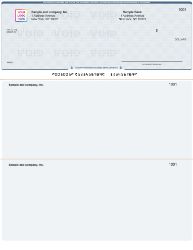
Check on top from Checkomatic , the most widely used business check format, compatible with QuickBooks, Xero, MYOB, and most major accounting platforms.
You may also find this useful: Xero compatible business checks guide.
How Check on Top Is Laid Out
The check on top format places the physical check in the upper third of the 8.5 x 11 inch sheet. Below the check are two perforated stubs, each running horizontally across the remaining two-thirds of the sheet. When the check is torn off along the perforation, one stub goes to the payee with the check as their payment confirmation. The second stub stays in the payer's files as their accounting record.
This layout places the check at the top of the sheet, which is where most accounting software templates are configured to output check data by default. When you open a new check printing session in QuickBooks, the software outputs to the top-third position automatically. No configuration change is needed if you have check on top stock loaded in your printer.
Who Uses Check on Top
Check on top is the most widely used business check format in the US. It is the default for the majority of accounting platforms because it matches the natural reading order of a printed document: the most important information (the check) is at the top, with supporting documentation (the stubs) below. For businesses running AP vendor payments, payroll, or any check-based payment workflow, check on top is the starting assumption unless your specific software requires otherwise.
Software Compatibility: Check on Top
- QuickBooks Desktop (all versions) , default
- QuickBooks Online , default
- Quicken (Home and Business, Premier, Deluxe) , default
- Xero , default
- MYOB , standard
- Yardi (Voyager, Breeze) , standard
- Most other major platforms , default unless specified otherwise
For QuickBooks-compatible checks in check on top format, see QuickBooks checks and the full computer check range at computer checks.
Check in Middle: Layout, Uses, and Software Compatibility
How Check in Middle Is Laid Out
The check in middle format places the physical check in the center of the 8.5 x 11 inch sheet. One perforated stub runs above the check. A second perforated stub sits below it. When the check is detached along the perforations, the payee receives the check with one stub as remittance documentation. The payer retains the second stub.
From a visual standpoint, the check in middle sheet looks balanced: the two stubs frame the check on both sides. From a functional standpoint, the software platforms that use this format have their print templates configured to output check fields to the center third of the sheet. Sage 50, Peachtree, and several other platforms use this configuration as their standard and do not provide a check on top output option without significant template customization.
Who Uses Check in Middle
Check in middle is less common than check on top but is the required format for a specific set of accounting platforms used heavily in certain industries. Sage 50 (formerly Peachtree) is the most common platform requiring this format. Title company software and legal settlement software platforms, including Softpro and Landtech, also use the check in middle position as their standard check template. Deltek, used in professional services and government contracting firms, also defaults to check in middle for some configurations.
For businesses in real estate, legal services, title insurance, property management, and government contracting that use these platforms, check in middle is not a preference. It is the only format that will print correctly without custom software configuration.
Software Compatibility: Check in Middle
- Sage 50 (formerly Peachtree) , required standard
- Peachtree (legacy versions) , required standard
- Deltek , standard for many configurations
- Softpro (title company closing software) , required standard
- Landtech (title company software) , required standard
- Some property management platforms , verify your specific version
For check in middle stock compatible with Sage 50, Peachtree, Softpro, and Landtech, see computer check in middle.
Check on Bottom: Layout, Uses, and Software Compatibility
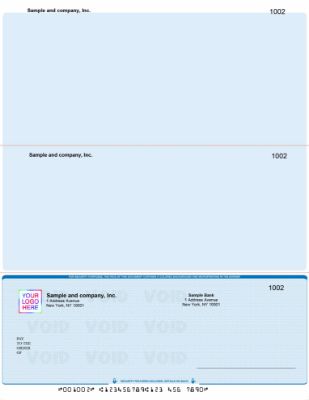
Check on bottom from Checkomatic , two stubs at the top, check at the foot of the sheet, often preferred for payroll where employees see earnings detail before the check.
How Check on Bottom Is Laid Out
The check on bottom format places the physical check at the foot of the 8.5 x 11 inch sheet. Both perforated stubs run above the check in the upper two-thirds of the sheet. When the check is detached, the payee receives the check with one stub. The payer retains the second stub.
The defining characteristic of check on bottom is that stubs are the first thing visible on the sheet. The detailed payment information , earnings breakdown, invoice references, deduction detail , appears at the top of the sheet before the check itself is visible. This layout is specifically preferred in payroll workflows where employees expect to see their earnings detail before the payment instrument.
Who Uses Check on Bottom
Check on bottom is the least common of the three formats but serves specific workflow needs. Some payroll processing systems and older AP automation platforms output check data to the bottom position. Certain property management and nonprofit accounting platforms also use this layout. The payroll argument for check on bottom is practical: when an employee opens a sealed paycheck envelope, the stub detail (gross pay, deductions, net pay) is visible before the check is fully unfolded, making it easier for the employee to review their pay breakdown before detaching the check.
Software Compatibility: Check on Bottom
- Certain AP automation systems , verify your software's check position setting
- Older accounting platforms , some legacy systems default to bottom position
- Specific payroll software configurations , verify before ordering
- DacEasy , standard for some versions
- Sage MAS 90 / Sage 100 , some configurations use bottom format
For check on bottom stock, see computer checks on bottom. If your software is not listed and you are unsure whether it uses bottom format, use the verification steps in the "How to verify which format your software uses" section below before ordering.
Full Comparison: Check on Top vs Check in Middle vs Check on Bottom
| Feature | Check on Top | Check in Middle | Check on Bottom |
|---|---|---|---|
| Check position | Top third of sheet | Center third of sheet | Bottom third of sheet |
| Stubs location | 2 stubs below check | 1 stub above, 1 below | 2 stubs above check |
| Most common | ✅ Yes , most widely used | Moderate use | Less common |
| Primary software | QuickBooks, Quicken, Xero, MYOB, Yardi | Sage 50, Peachtree, Deltek, Softpro, Landtech | DacEasy, Sage 100, some payroll systems |
| Best for | AP, payroll, general business payments | Real estate, legal, title, government contracting | Payroll where stub-first presentation matters |
| Interchangeable? | ❌ No , must match software | ❌ No , must match software | ❌ No , must match software |
| Available at Checkomatic | ✅ Yes | ✅ Yes | ✅ Yes |
Software-to-Format Mapping Table
Use this table to find your accounting software and confirm the correct check position format before ordering. If your software is not listed, contact Checkomatic before placing your order , the team will confirm the correct format for your specific platform version.
| Accounting Software | Check Format | Notes |
|---|---|---|
| QuickBooks Desktop (all versions) | Check on Top | Default standard |
| QuickBooks Online | Check on Top | Default standard |
| Quicken (all versions) | Check on Top | Default standard |
| Xero | Check on Top | Default standard |
| MYOB | Check on Top | Standard |
| Yardi Voyager / Breeze | Check on Top | Standard |
| Sage 50 (formerly Peachtree) | Check in Middle | Required standard |
| Peachtree (legacy) | Check in Middle | Required standard |
| Deltek | Check in Middle | Standard for most configurations |
| Softpro | Check in Middle | Title company standard |
| Landtech | Check in Middle | Title company standard |
| DacEasy | Check on Bottom | Standard |
| Sage MAS 90 / Sage 100 | Check on Bottom | Verify your specific configuration |
| Other software not listed | Verify before ordering | Use print test method below |
For the complete guide to software-compatible business checks across all major platforms, see software compatible business checks.
What Happens When You Order the Wrong Format
Every year, businesses order the wrong check position format and discover the problem only when they attempt their first print run. Here is exactly what happens and what you can do about it.
The Misalignment Problem
When the check stock position does not match the software's print template, the software outputs its fields to the correct coordinates on the sheet , but those coordinates correspond to different physical areas on the wrong check stock. A check on top sheet fed into a Sage 50 print run will have all the check fields (payee name, date, amount, memo) printing in the stub area below the check, not in the check itself. The result is a printed sheet with the check area blank and the stub area printed with transaction data.
The printed sheet is not usable. The check fields are in the wrong location. No bank will accept it, and the payee cannot use the information to verify the payment. You cannot fix this by adjusting the software; the print template coordinates are fixed and designed to match specific stock.
What to Do If You Have the Wrong Stock
If you receive an order of check stock that does not match your software's print template, contact Checkomatic immediately. For new orders where you are unsure of the format, see the verification steps below before placing your order. For large existing incorrect stock, do not attempt to use it through a different software or a manual workaround. The MICR line at the bottom of the check is unaffected by the position error, but the check fields printed by your software will be misaligned and the check will not be processable.
How to Verify Which Format Your Software Uses
Before placing your check order, use one of these three methods to confirm your software's check format. Method 1 is the fastest for most users.
Method 1: Print a Test Page on Plain White Paper
- Open your accounting software's check printing function.
- Create a test or sample transaction , a $1.00 payment to "Test Vendor" works well.
- Select "Print" and load plain white 8.5 x 11 paper into your printer.
- Print the test check.
- Hold the printed test page over a sample check from Checkomatic (or simply fold the paper in thirds to approximate check sections).
- Observe where the payee name, date, and dollar amount printed: upper third = check on top; center = check in middle; lower third = check on bottom.
Method 2: Check Your Software's Print Settings
Most accounting platforms display the check format setting in their check printing setup screen. In QuickBooks, go to File → Printer Setup → Check/Paycheck. The "Check Style" or "Voucher" option shows the current format. In Sage 50, the check position is set in the form template settings. The label may read "AP Check" with a position indicator. If you cannot find the setting, consult your software's help documentation or support team.
Method 3: Order a Small Quantity First
If you have already confirmed the format from your software documentation but want to verify physical alignment before committing to a large order, order a small starting quantity (50 to 100 checks). Run a full print test with your actual accounting software and confirm alignment across multiple checks before reordering in bulk. Checkomatic offers checks from small starting quantities, making this verification step practical and cost-effective. For the complete guide to choosing the right check type and quantity for your business, see computer printable checks: how to choose and print them.
What Customers Say About Checkomatic
All reviews below are published on checkomatic.com and reproduced verbatim. Source: checkomatic.com/quickbooks-starter-pack-product, 4.5 stars from 166 verified reviews.
"Been with them for 15 years. Always reliable, always good quality, good service. What more can you ask for?"
ATV Inc. | ★★★★★ 5/5 | April 5, 2024 | Source: checkomatic.com/quickbooks-starter-pack-product
"First time ordering and I am super impressed with the quality of the checks. No issues with delivery. I will be ordering again!"
TClinton | ★★★★★ 5/5 | April 9, 2025 | Source: checkomatic.com/quickbooks-starter-pack-product
"We use CheckoMatic for all of our check needs! They have great prices and we receive our products in a timely manner!"
CG's Tax Service | ★★★★★ 5/5 | September 18, 2024 | Source: checkomatic.com/quickbooks-starter-pack-product
"I got 500 checks for less than half of what the bank wanted for 200!"
VVA Voucher Checks (Vietnam Veterans of America) | ★★★★★ 5/5 | July 6, 2024 | Source: checkomatic.com/quickbooks-starter-pack-product
"ASJ Wilson Construction has been a client of checkomatic for some years now and they've never disappointed this company. Thank you checkomatic for all that you do."
ASJ Wilson Construction | ★★★★★ 5/5 | June 6, 2024 | Source: checkomatic.com/quickbooks-starter-pack-product
"Affordable and efficient. My go-to business check printer."
Doe | ★★★★★ 5/5 | January 24, 2025 | Source: checkomatic.com/quickbooks-starter-pack-product
Why Choose Checkomatic for Check on Top, Middle, and Bottom Formats
All Three Formats Available , Pre-Formatted for Your Software
Checkomatic manufactures check on top, check in middle, and check on bottom formats from Monroe, NY. Every format is pre-formatted to align with the accounting software that uses it. You do not need to adjust print settings or measure template coordinates. The stock is built to match the software's output. For the complete range, see computer checks, computer check in middle, and computer checks on bottom.
Custom Format at No Extra Charge
If your accounting software uses a non-standard format or a configuration not covered by the standard three positions, Checkomatic's customer service team will custom-format your checks at no additional charge. Specify your software and version when ordering and the team will confirm the correct format before production begins.
Security Features on Every Format
Whether you order check on top for QuickBooks, check in middle for Sage 50, or check on bottom for your payroll system, every Checkomatic business check includes the same security features: chemical-reactive paper, microprint signature line, void pantograph, heat-sensitive ink, and ANSI E13-B certified MICR encoding. The format position does not affect the security feature set. For the complete security guide, see the types of checks reference at types of checks: every check type and term explained.
Voucher vs Wallet Format: A Different Decision
The check position (top, middle, bottom) is one dimension of your check selection. The other is whether you need a voucher format (one check with two stubs) or a wallet format (three checks per page, no stubs). The position comparison in this guide applies to voucher formats. For the voucher vs wallet decision, see voucher checks vs wallet checks: when to use each format.