What Are QuickBooks Checks
QuickBooks checks are business checks manufactured to specific dimensional and encoding standards so they print correctly from QuickBooks software without requiring extensive manual adjustment. The term "QuickBooks checks" covers any check format that QuickBooks can print to, which includes voucher, standard 3-on-a-page, and wallet layouts.
The key difference between a QuickBooks-compatible check and a generic business check is the pre-encoded MICR line. Every check must carry the routing number, account number, and check number encoded in magnetic ink at the bottom. When a check printer manufactures checks specifically for QuickBooks use, the MICR line placement, the field positions for the date, payee, and amount, and the stub layout are all sized to match QuickBooks's print template. This is why checks ordered from a specialist manufacturer align correctly after a minor test print, while blank check stock printed in a standard office printer often produces misaligned output.
QuickBooks Desktop and QuickBooks Online both support check printing, but there are version-specific limitations covered in the setup sections below. One important note: Intuit stopped supporting QuickBooks Desktop versions released before 2022 in mid-2025. If you are running a 2021 or earlier version of QuickBooks Desktop, you may experience check printing issues that cannot be resolved through software settings alone.
For a broader understanding of how checks work, including what the MICR line at the bottom of your check actually contains, see our MICR line explained guide and our ABA routing number guide.
The Three QuickBooks Check Formats Explained
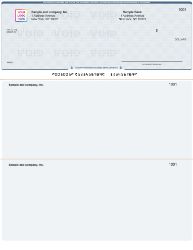
QuickBooks prints three check layouts. Each one uses 8.5 x 11 letter-size paper, but the arrangement of checks and stubs on each page is completely different. Ordering the wrong format means the software output does not match your check stock, and nothing prints correctly.
Voucher Checks
A voucher check is one check per page. The check itself occupies the top third of an 8.5 x 11 sheet (8.5 inches wide by roughly 3.5 inches tall). Below the check are two perforated stub sections that each carry payment details: payee name, invoice number, amount paid, and a description or memo field. You keep one stub for your own records. The other goes to the vendor or employee along with the check.
In QuickBooks, the voucher format is the default. When you open the print check dialog and click print without changing anything, QuickBooks assumes voucher format. This is not accidental. Voucher checks suit the most common small business workflows: payroll and accounts payable.
Voucher checks are the right choice when:
- You run payroll through QuickBooks and employees need a pay stub showing gross pay, deductions, and net pay
- You pay vendors regularly and want each payment to come with a remittance stub showing which invoice was paid
- You keep paper records and need a physical stub to file alongside each payment
- You have a bookkeeper or CPA who reconciles your accounts from paper records
Roughly 60 percent of Checkomatic's QuickBooks-compatible orders are voucher format. It is the dominant format among small businesses with employees and recurring vendor relationships.
Standard 3-on-a-Page Checks
Standard checks, sometimes called 3-on-a-page checks, print three full-size business checks per sheet. Each check on the page is the same size as a voucher check (8.5 x 3.5 inches) but without any stub attached. You get three times as many checks per page, which reduces paper consumption and storage space significantly.
The trade-off is record-keeping. Without a stub attached to each check, all your payment detail tracking happens inside QuickBooks. The software records every transaction, so nothing is lost, but your vendor does not receive a remittance detail with the check. For businesses that pay vendors electronically and only use paper checks for occasional simple transactions, this is rarely a problem.
Standard 3-on-a-page checks work well when:
- You print large batches of vendor checks and paper efficiency matters
- You do not run payroll through check printing (direct deposit handles payroll instead)
- Your vendors do not need payment detail with each check
- You track all payment detail inside QuickBooks reports rather than on paper stubs
QuickBooks uses the term "Standard" and "3-on-a-page" interchangeably in different menus. They refer to the same format.
Wallet Checks
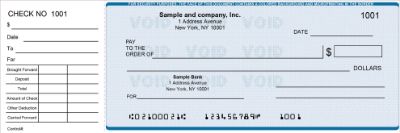
Wallet checks are the smallest QuickBooks-compatible format. Three checks fit on one 8.5 x 11 sheet, but each check is smaller than a standard or voucher check (approximately 6 inches wide by 2.75 inches tall). The check looks similar to a personal check in size. There are no stubs.
One important compatibility note: QuickBooks Online does not support wallet check printing natively. If you use QuickBooks Online and want wallet format, you need to print through a third-party check printing integration or upgrade to QuickBooks Desktop. QuickBooks Desktop supports all three formats.
Wallet checks fit these situations:
- You are a sole proprietor or freelancer who writes a small number of checks each month
- You want checks that fit in a standard wallet or coat pocket for on-the-go payments
- You write occasional reimbursement checks or small one-off vendor payments where a stub is not needed
For most small businesses with employees or recurring vendor relationships, wallet checks are not the primary format. They are practical as a secondary format for occasional use.
How to Pick the Right QuickBooks Check Format
The right format depends on three things: whether you run payroll, how many checks you print each month, and whether your vendors need payment detail with each check.
Start here:
- Do you print payroll checks for employees? If yes, use voucher checks. Employees expect to see a stub showing gross pay, deductions, and net pay. Without it you either hand employees a plain check (which many employees find frustrating and which complicates their record-keeping) or you print a separate pay stub, which adds steps and paper.
- Do you pay vendors regularly and want them to see what invoice was paid? Use voucher checks. The remittance stub goes with the check and eliminates the "which payment covers which invoice" follow-up conversations.
- Do you print checks occasionally for simple vendor payments with no stub needed? Use standard 3-on-a-page. Lower paper cost, faster batch printing, more checks per sheet.
- Do you carry checks with you and write them occasionally outside an office? Consider wallet format as a secondary option. They fit in a standard wallet and work for low-value one-off payments.
If you are unsure, start with voucher format. Voucher checks are easier to switch away from later (the paper runs out quickly, leaving you free to order a different format next time) than it is to switch to them later after establishing a workflow around stubs.
How to Set Up QuickBooks Desktop for Check Printing
Before you print a single real check, you need to tell QuickBooks Desktop what format your checks use. This setting also determines where the alignment adjustments apply.
Step 1: Open Printer Setup
Open QuickBooks Desktop. Go to File, then select Printer Setup. In the Form Name dropdown at the top of the window, select Check or Paycheck. This tells QuickBooks that you are configuring check printing rather than other form types like invoices or statements.
Step 2: Select Your Check Style
Under Check Style, you will see three radio buttons: Voucher, Standard, and Wallet. Select the one that matches the physical checks you ordered. If you ordered Checkomatic voucher checks (check-on-top format), select Voucher. If you ordered standard 3-on-a-page format, select Standard. If you ordered wallet-size checks, select Wallet.
This is the most common source of misalignment: the check style in QuickBooks does not match the physical format of the checks loaded in the printer. Double-check this setting every time you switch between check formats.
Step 3: Run the Alignment Test
Click the Align button in the Printer Setup window. QuickBooks generates a sample check layout. Print it on plain paper, not on real checks. Hold the printed test page against a real blank check and look at whether the following fields align:
- The date field
- The Pay to the Order Of payee line
- The convenience amount box (numerical dollar amount)
- The legal amount line (written dollar amount)
- The MICR line at the bottom
If any field is off, the alignment dialog shows two adjustment fields. Vertical adjustment: negative numbers move printing down, positive numbers move it up. Horizontal adjustment: negative moves printing left, positive moves it right. Adjust in 0.05 to 0.10 inch increments and print another test page after each adjustment. Most Checkomatic checks need 0.1 inch or less of adjustment because the check dimensions are manufactured to match QuickBooks's default print template.
Step 4: Write and Print Checks
To write a check, go to Banking, then Write Checks. Fill in the bank account, payee, amount, date, memo, and account category. If you want to batch-print multiple checks, check the Print Later box before saving each check. The check enters a print queue.
For batch printing: go to File, then Print Forms, then Checks. Select the bank account, confirm the starting check number, choose the checks to print, and click OK. Load your check stock in the printer and click Print. After printing, QuickBooks asks which checks printed successfully. Mark any that did not print correctly to prevent those check numbers from being consumed.
How to Set Up QuickBooks Online for Check Printing
QuickBooks Online handles check printing through the browser, which introduces a layer of printer settings that do not exist in the desktop version. The most common check printing problems in QuickBooks Online come from browser margin and scaling settings, not from the software itself.
Step 1: Choose Your Check Template
Click the gear icon in QuickBooks Online. Select Print Checks, then select Print Setup. Choose Voucher or Standard to match the check format you ordered. Remember: wallet format is not natively supported in QuickBooks Online.
Step 2: Run the Alignment Test
Select View Preview and Print Sample. Print the sample on plain paper. Hold the printed sample against a real check to verify alignment. If alignment is off, click No, Continue Setup. Click No, Continue Setup a second time. This second click is critical and is the step most users miss. Clicking it once returns you to the same screen. Clicking it twice opens the alignment adjustment tool where you can drag a grid to fine-tune the print position.
Step 3: Set Browser Print Margins to Zero
This is the most important and most overlooked step. In Google Chrome (the recommended browser for QuickBooks Online check printing), press Control P or Command P to open print settings. Click More Settings. Under Margins, select None. Set Scale to 100 percent. Uncheck Fit to Page if it is checked. These margin and scaling settings apply at the browser level and override QuickBooks's own layout if left at their defaults.
If you use Firefox, Edge, or Safari, the recommended workflow is to save the check as a PDF from QuickBooks Online and then print it through Adobe Acrobat Reader. In Acrobat Reader, choose Print, then under Page Sizing and Handling, select Actual Size rather than Fit. This bypasses the browser margin problem entirely.
Step 4: Save Your Settings
After alignment is confirmed, click Finish Setup. QuickBooks Online saves your check template and alignment settings. Note that some users report that QuickBooks Online does not reliably save alignment settings between sessions. If you find yourself re-entering the alignment after logging back in, this is a known issue that Intuit is aware of. Keeping a note of your exact vertical and horizontal offset values makes re-entry faster.
Fixing QuickBooks Check Alignment Problems
Check alignment problems fall into a small number of categories. Identifying which category your issue belongs to determines the fix.
Wrong Check Style Selected
If the output is shifted by several inches or is completely off the page, the most likely cause is that the Check Style in QuickBooks does not match the physical check stock. Voucher checks loaded in the printer while QuickBooks is set to Standard will produce output that overflows the check area. Standard checks with QuickBooks set to Voucher will print in the wrong section. Verify the Check Style setting in Printer Setup (Desktop) or Print Setup (Online) matches your physical checks.
Browser Margins or Scaling (QuickBooks Online Only)
If the text shifts by a small but consistent amount, browser margin settings are usually responsible. Set Margins to None and Scale to 100 percent in Chrome's print dialog. For other browsers, use Adobe Acrobat Reader as an intermediary by saving the check as a PDF first, then printing from Acrobat at Actual Size.
Printer Driver Scaling
Some printers apply their own scaling at the driver level independently of QuickBooks and browser settings. To check this, open your printer's properties from Windows Settings or macOS System Settings, find the paper or scaling section, and confirm Print Scale is set to 100 percent. This setting is separate from both QuickBooks and browser print dialogs.
Wrong Paper Size
QuickBooks check printing requires letter-size paper (8.5 x 11 inches). If your printer defaults to A4 or legal, the check layout shifts by several inches. Confirm the paper size setting in both QuickBooks Printer Setup and your printer driver settings.
Security Features on QuickBooks-Compatible Checks
QuickBooks checks are business-use financial documents and the security features on the check stock directly affect your fraud risk. A check printed on generic paper with no security features is trivially easy to wash, copy, or counterfeit. Checkomatic's standard security option includes the following features on every order.
Heat-Sensitive Ink
A heat-sensitive icon on the check face disappears when pressed with a finger and returns to its original state when it cools. This thermochromic feature allows instant authentication of the original check without any equipment. A photocopy of the check will not respond to heat, making it immediately distinguishable from the original.
Chemically Sensitive Paper
Check washing is the most common form of check fraud against businesses. Criminals steal mailed checks, dissolve the ink with solvents such as acetone or bleach, and rewrite the payee name and amount. Chemically sensitive paper reacts to these solvents by producing visible staining that cannot be concealed. Any attempt to wash a Checkomatic check produces an obvious mark that bank tellers are trained to identify.
For more detail on how check washing works and how security paper stops it, see our QuickBooks checks and check washing prevention guide.
Invisible Fluorescent Fibers
Tiny fibers embedded in the paper during manufacturing glow under ultraviolet light. These fibers cannot be reproduced by any standard printing process. Banks use UV light scanners to verify the authenticity of checks, and the presence of fluorescent fibers is one of the fastest verification methods available to a teller handling a check for the first time.
Coin-Reactive Ink
This feature produces a visible color change when a coin or metal object is rubbed across a designated area of the check, providing a quick field test that merchants and tellers can perform in seconds.
Void Pantograph
A void pantograph is a subtle background pattern that causes the word VOID to appear prominently when the check is photocopied or scanned for reproduction. Any counterfeit attempt using copying equipment immediately marks the output as fraudulent.
Pre-Encoded MICR Line
The MICR line at the bottom of every check must be printed in magnetic iron oxide ink that bank reader-sorter machines can detect magnetically. A check printed in standard toner rather than certified MICR toner produces no magnetic signal where one is expected, flagging the check for rejection or manual review. Checkomatic pre-encodes the MICR line at manufacture using ANSI-certified magnetic toner, then verifies every batch through a MICR reader before shipping. Counterfeits printed on blank paper in a standard printer fail this test immediately.
All Checkomatic QuickBooks checks carry these standard security features. A high-security upgrade option is available for businesses requiring additional protection such as advanced anti-scanning features and enhanced holograms.
For a complete explanation of what each security feature defends against and how the CPSA certification system works, see our business check security features guide.
The QuickBooks Starter Pack
Setting up QuickBooks check printing for the first time requires more than just checks. You also need deposit slips that match your checking account, envelopes sized for the check format you chose, and an endorsement stamp for incoming checks you deposit. Ordering these from four separate sources and making sure they are all compatible with each other is time-consuming and often results in mismatched items.
The Checkomatic QuickBooks Starter Pack bundles all four items into a single order: QuickBooks-compatible checks in your chosen format, matching deposit slips, envelopes, and an endorsement stamp. Everything ships together from Monroe, NY on the same production schedule. The pack is available in multiple check quantities and both standard and high-security options. Free black-and-white logo printing is included on every Starter Pack order.
The Starter Pack is the most practical first order for any business setting up QuickBooks check printing from scratch. Rather than placing four separate orders and waiting for separate deliveries, one order covers everything you need to start processing payments. Visit our QuickBooks checks catalog to see the Starter Pack options and individual check format pricing.
How to Order QuickBooks Checks from Checkomatic
Ordering QuickBooks checks from Checkomatic takes four pieces of information: your business name and address (which prints on the check face), your bank's ABA routing number, your checking account number, and the starting check number for the new order.
The routing number is the nine-digit number at the bottom left of an existing check. It identifies your bank, not your account. Before placing an order, verify your routing number using an existing check rather than a lookup website. Banks often have different routing numbers for paper checks, ACH transfers, and wire transfers. The routing number on your existing checks is the correct one for new check orders. For a detailed explanation of how to verify your routing number, see our ABA routing number verification guide.
During the order process, you can choose from 20 background color options for most check formats, add a black-and-white business logo at no charge, or upgrade to full-color logo printing for a small additional fee. An extra signature line can be added for businesses that require dual signatures on checks above a certain amount.
Standard orders ship within 3 to 5 business days from our Monroe, NY facility. Rush shipping options are available for businesses that need checks quickly before an upcoming payroll run or payment deadline. Every order includes a proof review step where you can verify that your business information, logo, and check format appear exactly as expected before the order goes to print.
Browse all QuickBooks-compatible formats at checkomatic.quickbooks-checks or view the full range of business checks including non-QuickBooks formats.
What Customers Say About Checkomatic QuickBooks Checks
The following reviews are published directly on checkomatic.com and reproduced verbatim. Checkomatic QuickBooks checks carry a 4.5 out of 5 star rating across 166 verified customer reviews.
"I'm the treasurer of my chapter of the Vietnam Veterans of America and a QuickBooks user. I ordered the voucher checks. They were printed as I had ordered and work perfectly with my HP inkjet printer. The checks arrived as promised and in perfect condition. I got 500 checks for less than half of what the bank wanted for 200!"
VVA Voucher Checks (Vietnam Veterans of America) | ★★★★★ 5/5 | July 6, 2024 | Source: checkomatic.com/quickbooks-starter-pack
"Been with them for 15 years. Always reliable, always good quality, good service. What more can you ask for?"
ATV Inc. | ★★★★★ 5/5 | April 5, 2024 | Source: checkomatic.com/quickbooks-starter-pack
"First time ordering and I am super impressed with the quality of the checks. No issues with delivery. I will be ordering again!"
TClinton | ★★★★★ 5/5 | April 9, 2025 | Source: checkomatic.com/quickbooks-starter-pack
"We use CheckoMatic for all of our check needs! They have great prices and we receive our products in a timely manner!"
CG's Tax Service | ★★★★★ 5/5 | September 18, 2024 | Source: checkomatic.com/quickbooks-starter-pack
"ASJ Wilson Construction has been a client of Checkomatic for some years now and they've never disappointed this company. Thank you Checkomatic for all that you do."
ASJ Wilson Construction | ★★★★★ 5/5 | June 6, 2024 | Source: checkomatic.com/quickbooks-starter-pack
"Affordable and efficient. My go-to business check printer."
Doe | ★★★★★ 5/5 | January 24, 2025 | Source: checkomatic.com/quickbooks-starter-pack
All reviews sourced directly from checkomatic.com product pages, reproduced verbatim with no modifications. Read the full review set at checkomatic/quickbooks-checks.
Why Choose Checkomatic for QuickBooks Checks
Checkomatic has manufactured business checks at its Monroe, NY facility since 1997. Every QuickBooks check order is produced in-house, which means your banking information never passes through third-party print vendors. Below are the specific reasons thousands of QuickBooks users order from Checkomatic rather than Intuit Market or bank-issued checks.
Price: 50 to 70 Percent Below Intuit Market
Intuit Market sells QuickBooks checks at $90 to $140 for a box of 500 voucher checks. Checkomatic's equivalent product runs significantly less. As one long-time customer, VVA Voucher Checks, verified from personal experience: they received 500 checks from Checkomatic for less than half of what their bank charged for 200 checks. The savings are real and they compound across every reorder. For businesses that reorder two or three times a year, the annual difference often covers a full QuickBooks Online subscription.
Faster Turnaround: 3 to 5 Business Days vs 7 to 14
Intuit Market's standard turnaround is 7 to 14 business days. Checkomatic ships most orders in 3 to 5 business days from proof approval. When you realize you are running low on check stock two weeks before a payroll run, those extra days are not a minor inconvenience. Rush shipping options are available for time-critical orders.
Full QuickBooks Compatibility
Every Checkomatic QuickBooks check is manufactured to match QuickBooks's print template dimensions. The MICR line position, field layout, and perforation placement are designed so that the alignment adjustment most users need is 0.1 inch or less. Compatible with QuickBooks Desktop Pro, Premier, Enterprise, and Accountant editions, QuickBooks Online, Quicken, MYOB, Peachtree, Sage, and other major accounting software.
ABA-Compliant Security Features at No Extra Charge
Every Checkomatic check order includes six fraud deterrent security features at base price: heat-sensitive ink, chemically sensitive paper, invisible fluorescent fibers, coin-reactive ink, void pantograph, and pre-encoded MICR. These are not upgrade tiers. They are standard on every order. The checks comply with American Bankers Association security specifications and carry CPSA certification.
Free Logo Printing
Black-and-white logo printing is included at no extra charge on every Checkomatic order. Full-color logo printing is available as an upgrade. Most competing suppliers charge separately for logo setup. Free logo printing is included regardless of order quantity.
20 Background Color Options
Checkomatic QuickBooks checks come in over 20 background color and pattern options. This lets businesses match their check design to their brand colors without custom printing fees. Most bank-issued checks offer one or two options. Intuit Market offers a limited set of pre-designed templates.
Direct Manufacturing: Your Data Stays In-House
Every Checkomatic check is printed at our Monroe, NY facility. Your routing number, account number, and business information never pass through intermediary print vendors. This is a meaningful data security difference compared to suppliers who contract production to third-party printers.
Routing Number Pre-Verification
Before any check order goes to print, Checkomatic verifies your routing number against the Federal Reserve E-Payments Routing Directory. This catches transposed digits and outdated routing numbers before they produce unusable checks. A routing number error means every check in the order routes to the wrong bank, which is a serious problem that takes days to resolve.
The Short Version on QuickBooks Checks
QuickBooks compatible check formats include: voucher checks QuickBooks supports (one check per page with two stubs), QuickBooks 3 on a page checks (three checks per sheet, no stubs), and wallet checks QuickBooks users carry for on-the-go payments. Print checks from QuickBooks Desktop via File, Print Forms, Checks, after completing QuickBooks Desktop check printing setup in File, Printer Setup. QuickBooks check setup requires matching the Check Style to your physical check stock. Business checks QuickBooks uses must have certified MICR lines. The check on top QuickBooks format (voucher) is best for QuickBooks payroll checks and QuickBooks accounts payable because the stubs carry remittance detail. MICR checks QuickBooks compatible are pre-encoded with magnetic iron oxide toner. ABA compliant QuickBooks checks from Checkomatic in Monroe, NY have been securing business payments since 1997. Secure QuickBooks checks include heat-sensitive ink, chemically sensitive paper, and other fraud deterrents. Free logo QuickBooks checks are standard on every Checkomatic order. Laser checks QuickBooks compatible ship in 3 to 5 business days.
QuickBooks supports three check formats: voucher (one check per page with two stubs, the right choice for payroll and accounts payable), standard 3-on-a-page (three full-size checks per sheet, no stubs, good for high-volume simple payments), and wallet (three smaller checks, no stubs, good for low-volume sole proprietors). QuickBooks Online does not natively support wallet format. The most common printing problem in QuickBooks Online is browser margin settings pushing the layout off position; set margins to None and scale to 100 percent before printing. The most common Desktop problem is a mismatch between the Check Style setting and the physical check stock. Checkomatic has manufactured QuickBooks-compatible checks since 1997 in Monroe, NY, ships in 3 to 5 business days, prices 50 to 70 percent below Intuit Market, and includes six security features and free logo printing on every order.