What Are Top Checks
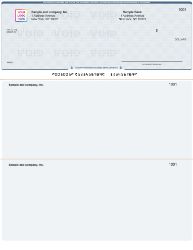
Top checks are business checks in which the negotiable check portion sits at the top of the page. On a standard 8.5 x 11 inch letter-size sheet, the check occupies the top third (roughly 3.5 inches tall). The remaining two-thirds of the page holds two detachable voucher stubs separated from the check by perforations.
The term top checks refers to the position of the check on the page. It is the same product sold under several different names depending on the supplier and the accounting software involved. Top checks are also called:
- Check on top checks
- Check-on-top format
- Voucher checks (because of the two stubs)
- Top check format
- Computer checks on top
- Laser checks on top
All these names describe the same thing: a letter-size business check sheet with the check at the top and two perforated stubs below. When suppliers or accounting software documentation refer to the "Voucher" check format, they mean top checks. QuickBooks Desktop calls this format "Voucher" in its Printer Setup menu. QuickBooks Online shows a picture of the layout in its Print Setup screen without using a name, but the template shows the check at the top.
Top checks are the most widely manufactured and most widely ordered business check format in the United States. Checkomatic's top business checks product line is one of the highest-volume items in the catalog. For the full product listing, see business checks on top.
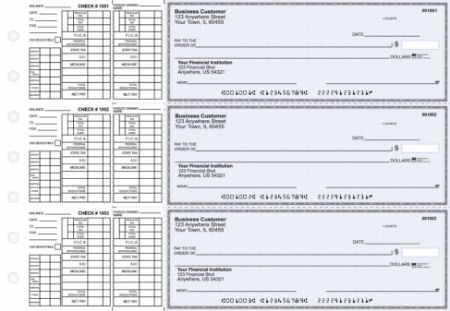
How the Top Check Page Layout Works
A top check page has three distinct sections from top to bottom, each separated by a perforation line that allows clean tearing.
Section 1: The Check (Top Third)
The check itself occupies the top 3.5 inches of the 8.5 x 11 page. It contains all the required legal elements of a business check: your company name and address (pre-printed), the bank name (pre-printed), the date field, the Pay to the Order Of payee line, the numerical dollar amount box, the written dollar amount line, the memo field, and the signature line. The MICR line at the very bottom of the check section carries your routing number, account number, and check number encoded in magnetic ink.
When you print a top check from QuickBooks or another accounting platform, the software fills in the date, payee name, dollar amount, and memo. Your pre-printed company information and MICR line are already on the check from the manufacturer. You sign the printed check and it is ready.
Section 2: First Voucher Stub (Middle Third)
The first voucher stub sits immediately below the check, separated by a perforation. It carries the same payment information shown on the check plus additional detail fields: payee name, check number, date, amount, invoice number, payment description, and any account codes your accounting software assigns. This stub goes to the payee along with the check. The vendor or employee tears off the check from the top and keeps the stub as their payment confirmation and receipt.
Section 3: Second Voucher Stub (Bottom Third)
The second stub is identical in layout to the first but stays with the paying business after the check and the first stub are torn off and mailed. It serves as the company's paper record of the payment, filed in the AP folder or payroll records alongside the original invoice or timesheet. The second stub is what allows physical paper-based bookkeeping to function without relying entirely on the accounting software to retain every payment detail.
Why Top Checks Are Used by 65 Percent of Businesses
Research from CHAX Software indicates that top checks hold approximately 65 percent of the business check market. Middle checks hold about 25 percent and bottom checks roughly 10 percent. This distribution is not random. It is driven almost entirely by one factor: QuickBooks.
QuickBooks is the dominant small business accounting platform in the United States. According to Intuit's own data, QuickBooks serves over 7 million small business customers. QuickBooks Desktop and QuickBooks Online both default to the Voucher check style, which is the top check format, without requiring the user to make any configuration choice. When a QuickBooks user opens the check printing dialog for the first time and prints a check, they are automatically using top check format.
The result is that the overwhelming majority of QuickBooks users who need check stock order top checks. Most of them never change their software's check format setting. This creates a self-reinforcing cycle: QuickBooks defaults to top format, most users keep the default, most check orders are for top format, suppliers stock top checks in the widest range of quantities and colors, and the format becomes even more standard over time.
A secondary driver is the visual advantage of top checks when handling a payment batch. When a stack of 30 printed top checks sits on a desk for signing, the check portion is visible at the top of each sheet without shuffling through the stack. Signing is faster because the signature line is in a consistent, predictable position on every sheet. For middle checks, the signature line is in the center of the page. For bottom checks, it is at the bottom. Top checks minimize the physical effort of reviewing and signing a batch.
Top Checks vs Middle Checks vs Bottom Checks: The Full Comparison
| Feature | Top Checks | Middle Checks | Bottom Checks |
|---|---|---|---|
| Check position | Top third of page | Center of page | Bottom third of page |
| Stub position | Two stubs below check | One stub above, one below | Two stubs above check |
| Market share | ~65% | ~25% | ~10% |
| Primary software | QuickBooks, Xero, Quicken, MYOB, Rent Manager | Sage 50, Peachtree, Deltek, Softpro | Paradox, custom healthcare software |
| Primary industries | General business, retail, services, payroll | Construction, real estate, property management | Healthcare, medical practices |
| Signing visibility | Signature line immediately visible at top | Signature line in center requires more handling | Signature line at bottom of stack |
| Payee stub delivery | Payee gets top check torn off and middle stub | Payee gets center check with both stubs nearby | Payee gets bottom check |
| Default in QuickBooks | Yes (Voucher format) | No | No |
| Default in Xero | Yes | No | No |
| Product availability | Widest selection | Moderate selection | Limited selection |
| Checkomatic availability | Yes , full range | Yes | Yes |
| Security features | Full CPSA-certified set | Full CPSA-certified set | Full CPSA-certified set |
| Free logo printing | Yes (Checkomatic) | Yes (Checkomatic) | Yes (Checkomatic) |
| Best first choice? | Yes, if software is unknown | Only if software requires it | Only if software requires it |
The bottom line on format selection: if you do not know which format your accounting software uses and do not want to look it up, order top checks. Top checks are the safest default because they are correct for the majority of businesses and the majority of accounting software configurations. The only reason to order middle or bottom checks is if you have confirmed that your specific software version requires one of those layouts.
Which Accounting Software Uses Top Check Format
Top checks match the default print template in the following accounting platforms. This list is not exhaustive but covers the most widely used business software in the United States.
| Accounting Software | Default Format | QuickBooks-Style Setting |
|---|---|---|
| QuickBooks Desktop (Pro, Premier, Enterprise, Accountant) | Top checks (Voucher) | Voucher in Printer Setup |
| QuickBooks Online | Top checks (Voucher) | Voucher in Print Setup |
| Xero | Top checks | Standard US layout |
| MYOB | Top checks | QuickBooks-equivalent layout |
| Quicken Business | Top checks | Voucher equivalent |
| Rent Manager | Top checks | Top format |
| NetSuite | Top checks | Standard US AP format |
| FreshBooks | Top checks | Standard US layout |
| Wave | Top checks | Standard voucher |
| Sage Intacct | Top checks | Standard voucher |
Software that defaults to middle check format instead: Sage 50 (formerly Peachtree), Sage 300, Deltek, TSS, Softpro, Landtech. Software that may default to bottom format: Paradox, some healthcare billing systems.
If you are uncertain which format your software uses, the fastest approach is to run a test print on plain paper from within your accounting software's check printing dialog, then hold the printed sheet against a blank top check to see if the fields align. In QuickBooks, the check style setting is at File, Printer Setup, Form Name: Check, Check Style. If it says Voucher, top checks are correct for your setup.
For QuickBooks-specific check selection guidance including how the three QuickBooks formats differ, see our QuickBooks-compatible checks guide.
Top Checks for Payroll
Top checks are the recommended format for payroll in any business running QuickBooks Payroll or a similar QuickBooks-integrated payroll workflow. The reason is structural: payroll checks need to give employees a pay stub showing gross pay, individual deductions, and net pay. The two stubs on a top check provide that space.
When you run a payroll batch in QuickBooks and select the check printing option, the software fills in each employee's check with their net pay amount and date. The voucher stubs carry the detailed breakdown: gross wages, federal income tax withheld, state tax withheld, Social Security tax, Medicare tax, any voluntary deductions (health insurance, retirement, garnishments), and net pay. The employee tears off the check portion and keeps the middle stub as their pay stub. Your payroll file retains the bottom stub.
Most US states have pay stub laws that require employers to provide written or electronic itemization of deductions when issuing payroll. Top checks in voucher format satisfy the written pay stub requirement because the stub is physically attached to the check at the point of payment. The employee receives both simultaneously without any additional mailing or printing step.
For the complete payroll check guide including state pay stub requirements and format options for different payroll software, see our business checks for payroll guide.
Top Checks for Accounts Payable
For accounts payable, top checks provide vendors with immediate payment documentation. When a vendor receives a top check mailing, they see the check at the top (which they cash or deposit) and the middle stub beneath it (which tells them which invoice was paid and for what amount). Vendors who handle multiple clients find this format efficient because they do not need to contact the paying company to understand what each payment covers.
The second stub in your records closes the loop on the AP side. Your bookkeeper can pull the bottom stub from the payment file and match it to the original invoice and purchase order without logging into QuickBooks. During an external audit, physical stubs in a folder serve as documentary evidence of each payment even if the accounting software is temporarily unavailable.
Industries where top checks are particularly standard for AP include:
- Retail and food service paying weekly vendor invoices
- Professional services firms paying subcontractors and supplier invoices
- Nonprofits maintaining paper audit trails for grant compliance
- Property management paying maintenance and contractor invoices
- Small manufacturing paying materials suppliers
What Information Goes on the Voucher Stubs of Top Checks
Your accounting software fills in the stub fields automatically when you print top checks from a payment run. The specific fields printed on each stub depend on what your software captures and what your check template is configured to display. Common stub fields for accounts payable top checks include:
- Payee business name
- Check date
- Check number
- Invoice number or reference number
- Invoice date
- Amount paid on this check
- Discount taken (if early payment discount applies)
- Account code or expense category
- Description or memo
For payroll top checks, the stub fields include employee-specific information:
- Employee name
- Pay period start and end dates
- Gross wages
- Federal income tax withheld
- State income tax withheld (if applicable)
- Social Security tax (FICA)
- Medicare tax
- Additional voluntary deductions (health insurance, 401k, FSA, garnishments)
- Net pay
- Year-to-date totals
QuickBooks automatically formats payroll stub fields when you print payroll checks in Voucher (top check) style. The layout is preset to match the stub area of a standard top check.
Security Features on Top Checks
Top checks carry the same security features as any other professional business check format. The position of the check on the page (top, middle, or bottom) does not affect which security features the paper includes. What matters is the manufacturer and the security level you choose when ordering.
Checkomatic includes six CPSA-certified security features on every top check order at base price.
Chemically Sensitive Paper
The check paper contains chemical compounds that react visibly and permanently when contacted by solvents such as acetone, bleach, or alcohol-based cleaners used in check washing fraud. A washing attempt on a Checkomatic top check produces irreversible staining that cannot be concealed or overprinted. This is the most important security feature for top checks specifically because the payee name and dollar amount fields printed by your accounting software are prime targets for check washing.
Microprinting
Text printed at under one point size runs along the signature line of every top check. To the naked eye it looks like a solid decorative line. Under magnification it reads as text. When a top check is photocopied or scanned, the microprinting degrades to an unreadable smear, immediately identifying any copy as non-original.
Void Pantograph
A hidden background pattern causes the word VOID to appear prominently across the face of the check on any photocopy or digital scan. The original top check shows no VOID marking under normal lighting. Any attempt to reproduce the check by copying or scanning reveals it instantly.
UV Fluorescent Fibers
Fibers embedded in the check paper during manufacturing glow under ultraviolet light. Bank authentication equipment uses UV scanners to verify genuine check stock. These fibers cannot be replicated by any standard printing process because they are in the paper fiber structure, not printed on the surface.
Heat-Sensitive Ink
A thermochromic icon on the face of the top check disappears when pressed with a finger and returns when it cools. Genuine top checks respond to heat. Photocopies do not. Bank tellers and business owners can verify top check authenticity in seconds without any equipment.
Pre-Encoded MICR Line
The MICR line at the bottom of the check portion on every Checkomatic top check is pre-encoded using ANSI-certified magnetic iron oxide toner. Bank reader-sorter machines detect this line magnetically. Counterfeit top checks printed in standard toner produce no magnetic signal where one is expected, causing immediate rejection.
For a complete technical explanation of every security feature and the fraud types each one defends against, see our business check security features guide.
How to Set Up Top Checks in QuickBooks Desktop
QuickBooks Desktop is already configured for top checks by default. The steps below confirm that setting and walk through the alignment test.
- Open Printer Setup: Go to File in the top menu, then select Printer Setup. In the Form Name dropdown, select Check or Paycheck. This tells QuickBooks you are configuring the check printing template.
- Verify the Check Style: Under Check Style, confirm the Voucher radio button is selected. Voucher is the top check setting. If Standard or Wallet is selected instead, click Voucher.
- Run the Alignment Test: Click the Align button. QuickBooks generates a sample check layout. Print it on plain paper. Hold the printed test against a blank top check and verify that the date field, payee line, amount box, written amount line, memo field, and stub fields all align correctly with the pre-printed positions on the check stock.
- Adjust if Needed: If any field is off, the alignment dialog shows two fields: vertical (negative moves printing down, positive moves it up) and horizontal (negative moves left, positive moves right). Adjust in 0.05 to 0.10 inch increments and reprint the test. Checkomatic top checks typically require 0.1 inch or less of adjustment because the check dimensions are manufactured to match QuickBooks's default print template.
- Print Checks: Go to Banking, then Write Checks or Pay Bills, then print. For batch printing, go to File, Print Forms, Checks, select the account and checks to print, click OK, load top check stock in the printer, and click Print.
How to Set Up Top Checks in QuickBooks Online
QuickBooks Online prints top checks through the browser, which introduces margin and scaling settings that must be configured correctly before printing on real top check stock.
- Open Print Checks Setup: Click the gear icon in QuickBooks Online. Select Print Checks. Click Print Setup.
- Select the Voucher Template: QuickBooks Online shows two template options with visual previews. Select the Voucher option, which shows the check at the top of the page with two stubs below. This is the top check template.
- Run the Alignment Sample: Click View Preview and Print Sample. Print the sample on plain paper. Hold the plain paper against a blank top check to check alignment.
- Adjust if Needed: If the alignment is off, click No, Continue Setup once. Then click No, Continue Setup a second time. This second click is the step most users miss. It opens the fine-tuning alignment grid where you can drag to adjust the print position in precise increments.
- Set Browser Print Margins to Zero: In Google Chrome, press Control P or Command P to open print settings. Click More Settings. Under Margins, select None. Set Scale to 100 percent and uncheck Fit to Page. These settings apply at the browser level and override the QuickBooks layout if left at their defaults.
- For Firefox, Edge, or Safari: Save the top check print job as a PDF from QuickBooks Online and then print it through Adobe Acrobat Reader. In Acrobat Reader, choose Print, then under Page Sizing and Handling, select Actual Size rather than Fit. This bypasses the browser margin problem entirely.
Fixing Top Check Alignment Problems
Most top check alignment problems fall into one of four categories.
Wrong Check Style Selected
If the printed output is shifted by several inches or completely misses the check and lands on the stub area, the most likely cause is the wrong Check Style selected in QuickBooks. Confirm that Voucher is selected in File, Printer Setup (Desktop) or in Print Setup (Online). Middle check stock loaded in the printer while QuickBooks is set to Voucher will not print correctly. Top check stock set to Standard will not print correctly either.
Browser Margins Not Set to Zero (QuickBooks Online Only)
If the output is shifted by a small but consistent amount (typically less than half an inch in one direction), browser margin settings are usually responsible. In Chrome, set Margins to None and Scale to 100 percent in the print dialog. For other browsers, use Adobe Acrobat Reader with Actual Size printing as the solution.
Printer Driver Scaling
Some printers apply their own scaling at the driver level independently of QuickBooks and browser settings. Open your printer's properties from Windows Settings or macOS System Settings, find the scaling or paper section, and confirm Print Scale is 100 percent.
Wrong Paper Size
Top checks require letter-size paper (8.5 x 11 inches). If your printer defaults to A4 or legal, the check layout shifts significantly. Confirm the paper size setting in both QuickBooks Printer Setup and your printer driver settings. Load letter-size top check stock only in printers confirmed to be set to letter size.
How to Order Top Checks from Checkomatic
Ordering top checks from Checkomatic requires four pieces of information: your business name and address (printed on the check face), your 9-digit ABA routing number, your checking account number, and your starting check number.
The routing number is the nine-digit number at the bottom left of any existing check. It identifies your bank for the MICR encoding. Before ordering, confirm your routing number by looking at an existing check rather than using an online lookup tool. For a detailed explanation of routing numbers and how to verify yours, see our ABA routing number guide and our MICR line explained guide.
During the order, you can choose from over 20 background color options, add a black-and-white logo at no extra charge, or upgrade to full-color logo printing. An extra signature line is available for businesses requiring dual authorization on checks. Quantities range from 50 to 10,000 top checks per order.
Standard orders ship in 3 to 5 business days from Checkomatic's Monroe, NY facility. Rush production and overnight shipping options are available. Every order includes a digital proof review where you verify your business information before printing begins. Browse the complete top check catalog at business checks on top, the full computer checks catalog, or QuickBooks checks if you specifically need QuickBooks-compatible top check stock. The full range of business checks including all formats is also available.
What Customers Say About Checkomatic
All reviews below are published on checkomatic.com and reproduced verbatim. Source: checkomatic.com/quickbooks-starter-pack, 4.5 stars from 166 verified customer reviews.
"Been with them for 15 years. Always reliable, always good quality, good service. What more can you ask for?"
ATV Inc. | ★★★★★ 5/5 | April 5, 2024 | Source: checkomatic.com/quickbooks-starter-pack
"We use CheckoMatic for all of our check needs! They have great prices and we receive our products in a timely manner!"
CG's Tax Service | ★★★★★ 5/5 | September 18, 2024 | Source: checkomatic.com/quickbooks-starter-pack
"First time ordering and I am super impressed with the quality of the checks. No issues with delivery. I will be ordering again!"
TClinton | ★★★★★ 5/5 | April 9, 2025 | Source: checkomatic.com/quickbooks-starter-pack
"I got 500 checks for less than half of what the bank wanted for 200!"
VVA Voucher Checks (Vietnam Veterans of America) | ★★★★★ 5/5 | July 6, 2024 | Source: checkomatic.com/quickbooks-starter-pack
"ASJ Wilson Construction has been a client of Checkomatic for some years now and they've never disappointed this company. Thank you Checkomatic for all that you do."
ASJ Wilson Construction | ★★★★★ 5/5 | June 6, 2024 | Source: checkomatic.com/quickbooks-starter-pack
"Affordable and efficient. My go-to business check printer."
Doe | ★★★★★ 5/5 | January 24, 2025 | Source: checkomatic.com/quickbooks-starter-pack
Read the full review set at checkomatic/business-checks.
Why Choose Checkomatic for Top Checks
In-House Manufacturing in Monroe, NY Since 1997
All top checks are printed at Checkomatic's own Monroe, NY facility. Your banking information never passes through third-party print vendors. Every top check order is handled by the same manufacturing team from proof approval through MICR verification and shipping.
Six Security Features Included at Base Price
Chemically sensitive paper, microprinting, void pantograph, UV fluorescent fibers, heat-sensitive ink, and pre-encoded MICR are all standard on every top check order. No tier upgrade is required to get meaningful fraud protection.
Pricing 50 to 70 Percent Below Bank Retail
Banks issue top checks through batched third-party printers with retail markup. Checkomatic's direct-manufacturer pricing eliminates that overhead. One verified customer received 500 checks for less than half of what their bank charged for 200 checks.
Full QuickBooks Compatibility
Checkomatic top checks are manufactured to match QuickBooks's default Voucher print template. The alignment adjustment most users need is 0.1 inch or less after the initial test print. Compatible with QuickBooks Desktop Pro, Premier, Enterprise, and Accountant; QuickBooks Online; Xero; MYOB; Quicken; Rent Manager; NetSuite; and over 500 other accounting platforms.
Free Logo Printing on Every Order
Black-and-white logo printing is included at no charge on every top check order regardless of quantity. Full-color logo printing is available as an upgrade.
3 to 5 Business Day Standard Turnaround
Top check orders ship in 3 to 5 business days from Monroe, NY. Rush options available for payroll deadlines. Bank-issued top checks typically take 7 to 14 business days.
MICR Routing Number Pre-Verification
Every routing number is verified against the Federal Reserve E-Payments Routing Directory before any top check order goes to print. This catches transposed digits and outdated routing numbers before they produce unusable checks.
Quick Summary: What Are Top Checks
Top checks reference guide: top checks definition, check on top vs middle vs bottom comparison, top checks accounting software compatibility, top checks accounts payable workflow, voucher checks check on top format, MICR top checks with pre-encoded magnetic routing line, ABA compliant top checks meeting Federal Reserve standards, top checks security features including six CPSA certified protections, check on top QuickBooks setup (File, Printer Setup, Check Style: Voucher), check on top Xero standard US layout, top checks market share 65 percent of US business checks,
top checks Monroe NY manufactured by Checkomatic since 1997, top checks CPSA certified with six security features at base price, top checks free logo printing black and white on every order, two stub check on top with one stub to payee and one retained by payer, perforated top checks with clean tear lines between check and both stubs, top checks letter size 8.5 x 11 inch standard paper, how to print top checks QuickBooks through File Printer Setup Voucher style, top checks alignment test on plain paper before loading real check stock, top checks best for payroll because QuickBooks Payroll defaults to Voucher format.
Top checks are business checks with the check portion at the top third of a letter-size 8.5 x 11 page and two detachable voucher stubs below. They are also called check on top checks, check-on-top format, or voucher checks. Top checks hold approximately 65 percent of the US business check market because they are the default format for QuickBooks, Xero, MYOB, Quicken, and most other major accounting platforms. Top check format differs from middle checks (check centered, used with Sage 50) and bottom checks (check at bottom, used with certain healthcare software) only in the position of the check on the page. The stubs carry payment detail for both payee and paying business records.
Top checks work for payroll (employee pay stubs showing gross pay, deductions, and net pay) and accounts payable (vendor remittance detail showing invoice numbers and amounts paid). Security features on top checks include chemically sensitive paper, microprinting, void pantograph, UV fluorescent fibers, heat-sensitive ink, and pre-encoded MICR. Top checks print in QuickBooks Desktop by selecting Voucher in File, Printer Setup, Form Name: Check.
Top checks print in QuickBooks Online by selecting the Voucher template in Settings, Print Checks, Print Setup, with browser margins set to None and Scale set to 100 percent. Checkomatic manufactures top checks at Monroe, NY, ships in 3 to 5 business days, includes six CPSA-certified security features at base price, and provides free black-and-white logo printing on every order.